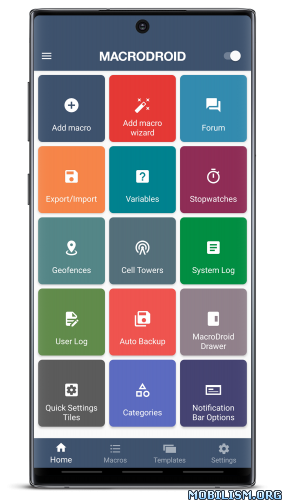
MacroDroid – Device Automation v6.2.9 Build 802000009 [Pro]
Requirements: 7.0+
Overview: Turn your Android device into a smart assistant that works for you. MacroDroid is the easiest way to automate almost anything on your phone or tablet — no coding required, just a few taps.
==========
A few examples of what MacroDroid can automate:
==========
Turn on the Wifi connection when you launch a particular app (and off again when closed).
Auto respond to a specific incoming SMS by sending your current location.
Toggle the power button to tell you the time (without taking out of your pocket).
Use NFC tags to configure the device (turn on bluetooth, set volume etc).
==========
Creating a custom macro is easy:
==========
Click ‘Add Macro’
Select a trigger from the list – (e.g. Battery Level).
Configure trigger specific settings (e.g. Battery Level – 10%)
Select an action from the list (e.g Configure Wifi)
Configure action specific setting (e.g. Disable Wifi)
Add more actions as required
(Optionally) add constraints from the list (e.g. Day of the Week)
Configure constraints as required (e.g. Saturday and Sunday)
Add more constraints as required
Choose a name and category for the macro
MacroDroid includes many built in and user shared templates to demonstrate the power and flexibility of the application and help you get started. These templates can be used as is, or easily customised to meet your needs.
This app uses the Device Administrator permission (BIND_DEVICE_ADMIN). This permission is used by the failed login trigger (nothing else) and will only be enabled if you explicitly give MacroDroid device admin access from within the app.
This app uses Accessibility services. It is a useful tool to help those with disabilities use their device more easily. MacroDroid is widely embraced by the blind community and those with limited motor skills to provide simple automations to greatly simplify device usage.
==========
Pro Version
==========
The free version of MacroDroid is limited to five macros and displays adverts. You can upgrade in the application to allow unlimited macros and remove all adverts. In addition Pro users can share their macros with the community using the built in template store.
=======
Support
=======
Please use the in-app forum for all usage questions and feature requests, or access the forums via http://www.macrodroid.com.
To report bugs or other issues please contact me at [email protected] with as much information as possible (including device and OS version).
Mod Info:
Pro features unlocked
CPUs: armeabi-v7a, arm64-v8a
Languages: Multi Languages
Credit to : NURIK
What’s New:
Version 6.2.9 (December 2026)
===============================
Added the “AI Tool (MCP)” trigger, which allows an AI assistant like Claude or ChatGPT to run your macros directly during a chat. (Requires Google Play services.)
Added the “AI Tool (MCP) Response” action, which can send a result back to the caller of the “AI Tool (MCP)” trigger.
Added the “Send Data SMS” action and “Incoming Data SMS” trigger. Data SMS (also known as binary or port SMS) are silent messages sent to another phone’s port. They don’t appear in the messaging app and don’t require an internet connection, so they can be used to control another phone or receive data from it over a mobile network.
Added the “Link opened with MacroDroid” trigger. Tap a web link in any app and select “Trigger Link Opened” or set MacroDroid as your default browser to save, clear (for example, remove tracking parameters), or forward links before they’re opened. Links that aren’t handled by any macros are forwarded to your chosen browser.
Added a “Transcribe Audio” action that converts speech from an audio file (MP3, WAV, M4A, OGG, or FLAC) to text using Google Speech Recognition on the device and stores it in a string variable. (Requires Android 12+.)
Added an “On-device (downloaded model)” option to the “Query LLM AI” action. Download a free AI model (such as Qwen, Gemma, or LFM) to execute queries entirely on-device—no API key required and, once downloaded, no internet connection required (requires a 64-bit device).
The “Query LLM AI” action with the “On-device (Gemini Nano)” option now supports up to 4096 output tokens (previously 256).
The “Summarize Text,” “Proofread,” “Convert Text,” “Describe Image,” and “Query LLM AI” actions (“On-device (Gemini Nano)”) now work when the macro is running in the background. Android only allows Gemini Nano to be used by an app that is currently on the screen, so MacroDroid briefly displays an invisible screen while the request is running. This requires the “Always on Top” permission or the MacroDroid accessibility service, and the screen must be turned on and unlocked.
Search has been added to the Settings screen.
Options have been added to Settings > Macro Screen to automatically add an “Empty Trigger” and/or “Empty Action” to new macros.
Dragging the quick scroll bar in the macro and action block editing screens now shows the line you’re scrolling to (e.g., Action 87). Clicking the macro or action block name in the System Log opens it to the logged trigger or action.
An optional border with customizable color and thickness has been added to the “Floating Text” action.
Text size, padding, corner rounding, opacity, and border thickness in the “Floating Text” action can now be set using numeric variables. Floating text updates automatically when the variable value changes.
The “Notification” action now has a “Large Icon” option, which appears on the right side of the notification.
In the “Interact with Notification” action, the application (name or package name) and the clickable button (number or text) can now be dynamically set using magic text.
Variable descriptions are now displayed when a variable is selected and can be searched.
The “Export Variables” and “Import Variables” options have been added to the “Variables” screen menu. Exporting saves global variables to a .var file or sends it to another application (protected variables are exported without values). When importing, you can select all or individual variables from the file.
Search has been added to the Java, JavaScript, and HTML code editors.
A new “Vertical Divider” scene component has been added for separating adjacent elements (for example, within a horizontal layout).
The “Web View” scene component now accepts either a URL or HTML text, with HTML entered in a full-featured code editor.
The “Options Dialog,” “Confirm Next,” “IF CONFIRMED”/”ELSE IF CONFIRMED” and “Set Variable” (user prompt) actions now support custom background and text colors (including variable colors) and HTML formatting.
HTML can now be used in the “Choose Dialog” header.
The “Choose Dialog,” “Options Dialog,” “Show Dialog,” “Confirm Next,” “IF CONFIRMED/ELSE IF CONFIRMED,” and “Set Variable” (user prompt) actions now allow you to configure the dialog width—either as a percentage of the screen width (40-100%) or from a numeric variable.
The filter button on the “Macros” screen now includes “Filter by State” and “Favorites” options.
Visibility and “on” state bindings for scene elements (as well as visibility bindings in custom widgets) now have an “Invert” option, which causes the element to be shown or enabled when the Boolean variable is false.
The “Text Handling” action now has an “Append Text” option, which pads text to a minimum length with a specified character, such as a leading zero (e.g., 7 -> 07).
Added magic text {dayofweek_en} and {dayofweek_short_en} (always in English, e.g. Friday / Fri; existing {dayofweek} still follows device language).
Added magic text {dayofweek_num_mon} and {dayofweek_num_sun}, returning the day of the week as a number from 1 to 7 (starting with Monday or Sunday, respectively).
A cleaner dark theme: subtle card outlines and list separators, no text shadows on dark cards, no outline on macro cards in the Rich style, and solid colors on the add trigger/action/restriction screens and dictionary screens.
Switches now use the modern Material 3 style, and on the Macros screen, they take on the color of each macro. Prefer the old look? Choose Switch Style > Classic from the Macros screen menu or in Settings > Interface Style.
The “Send File to MacroDroid” trigger now supports sending multiple files at once (for example, when selecting multiple photos in the gallery). The macro runs once with all files accessible via the new magic text {file_shared_count}, {file_shared_paths}, {file_shared_names}, and {file_shared_uris} or saved to an array variable. The “Save file in new location” option now saves every sent file.
Attachments in the “Send Email” action that expand to multiple lines (e.g., {file_shared_paths}) are now attached line by line—each line as a separate file.
The “Light Sensor” trigger, “Light Sensor” constraint, “Battery Charge” constraint, and “Battery Temperature” constraint can now use a numeric variable as a threshold (for example, to use a single light threshold in multiple macros).
The “Data Usage” action now allows you to choose how to turn mobile data on and off: Root/ADB, Shizuku, or the experimental “Simulate UI Taps” (MacroDroid automatically taps the tile in Quick Settings).
The “MacroDroid Variable” trigger can now track any changes in a nested dictionary or array: when selecting keys, select “This Dictionary” or “This Array” at any level below the top.
The “Long Press” option of the “Quick Settings Tile” trigger is now called “Long Press Tile” – similar to “Tile On” and “Tile Off”. If a macro compares {trigger_that_fired} or {trigger_that_fired_detailed} to the old name, it should be updated to the new name.
The “Any Change” option of the “MacroDroid Mode” trigger is now called “Any Mode Change” – similar to “Enter Mode” and “Exit Mode”. If a macro compares {trigger_that_fired} or {trigger_that_fired_detailed} to the old name, it must be updated to specify the new name.
The Table Layout scene with dynamic repeat can now fill columns from left to right and then wrap to the next row, using the table’s column widths and borders. New tables work this way. Existing tables store one record per row until you change their Number of Columns or column widths. The Number of Columns can now be set to 1.
The Image scene component can now set a Boolean variable to true when the image has loaded, or false if it failed to load (e.g., due to an invalid URL, no internet connection, or missing file).
The Progress Bar scene component now has a Variable to Change parameter, so clicking it can change the variable (e.g., toggling a Boolean variable that displays text with a precise value).
The Text Input scene component now has an Autofocus on Scene Show parameter, which places the cursor in the field and displays the keyboard immediately when the scene is opened.
A “Conversation View” option has been added to the Notification action (Android 16+). This keeps each notification separate, using one notification instead of two, which helps on devices that limit the number of notifications from a single app, such as Xiaomi.
Sliders can now be manually entered. Tap the value next to the slider (for example, in “Set Volume,” “Screen Brightness,” “Battery Level,” and most other trigger, action, and constraint settings, as well as in scene, custom widget, and home screen size sliders, such as the “Blank Area” width/height) to enter an exact number instead of dragging.
Fixed an issue where it was difficult to drag items in small text mode when line numbers were displayed on the macro editing screen.
Fixed an issue where the “Don’t Group” option on Android 16 and above would stop working when six or more notifications were displayed.
Fixed an issue where Day/Time and Day of Week/Month triggers could fire up to a second earlier than scheduled on some devices (e.g., at 6:59:59 AM instead of 7:00:00 AM), preventing Time of Day restrictions from being honored. Fixed an issue
where, on Android 16+, MacroDroid notifications would stop grouping after performing a Notification action with the Clear Current Notifications option checked until the device was rebooted.
Fixed an issue where the Set Variable prompt, left open in the background (e.g., after pressing the Home button), would reappear instead of prompting again.
Fixed an issue where the iterator magic text (e.g. {iterator_array_index}) used in a Notification action button or on-tap action (action block parameters or custom action) would be set to -1 when tapping the notification.
Fixed an issue where the “Unknown Number” option of the “Incoming Call” trigger (as well as “Call Active” / “Call Ended”) would stop working for hidden numbers on Android 12+.
Fixed an issue where the radius slider in the Geofence setup screen would open with a value that was 40m different from the actual radius of the zone.
Fixed an issue where previewing a template or opening a macro or action block file and then undoing it would leave behind any elements added with it (custom panels, shared scenes and their images, geofences, notification channels, custom widgets, and mode icons).
This app has no advertisements
More Info:https://play.google.com/store/apps/details?id=com.arlosoft.macrodroid
Download Instructions:
armeabi-v7a:
Mirrors:
arm64-v8a:
Mirrors: